In this article we will explain how you can manage your server via VNC.
With VNC you can easily access your server. The advantage is that it works even without an active network connection and SSH is not needed for authentication. VNC is the first place to go if, for example, you have broken the SSH configuration and need to undo changes.
VNC is emergency access
The VNC console is meant for fixing small problems, such as a broken SSH or network configuration or a system that no longer boots. It is not made for everyday work:
- No permanent connection: Even if you have enabled VNC, we do not guarantee that the VNC server stays reachable. If our system detects many login attempts in a short time, for example, it is switched off automatically.
- Publicly reachable: The VNC server can be reached from the internet and is only protected by a password of at most 6 characters.
- Not encrypted: A direct connection via the address with
::59XXis not encrypted. Everything you type in the console, including passwords, travels across the network in plain text.
So switch VNC off again once your problem is fixed. For permanent access, set up a secure protocol on the server: SSH on Linux, ideally with SSH keys, and Remote Desktop (RDP) on Windows.
There are two ways to connect. You can use the WebVNC directly in the web interface or you can connect directly via a program.
VNC directly in the web interface
So that you do not have to install an extra program, you can connect in the web interface via the browser. You will then see the input line of your virtual server in a browser window.
- Open the cloud manager of the server you want to connect to
- Navigate to the actions
- Click on VPS settings
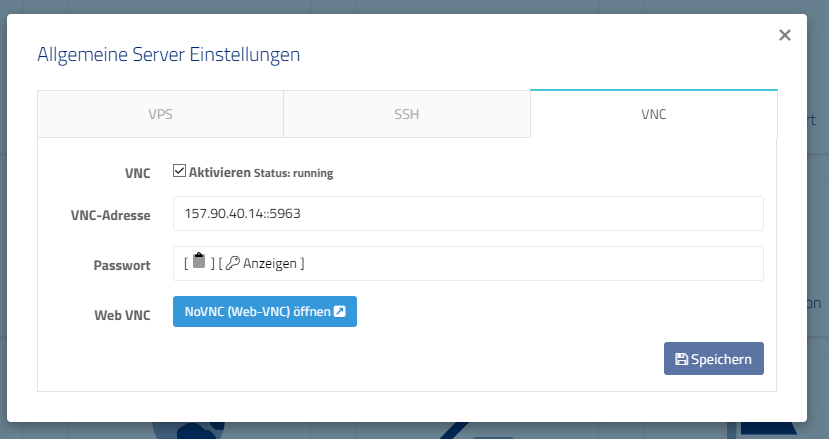
- Open the VNC tab
- Enable VNC if disabled. Restart the VPS afterwards.
- Click on Open NoVNC (Web-VNC)
- In the new window enter the password that is displayed in the VNC tab.
Use program
- Log in to the web interface.
- Navigate to the Cloud Manager of the vServer.
- Click on VNC data in the Actions field.
- Enable „VNC“ if you haven’t already.
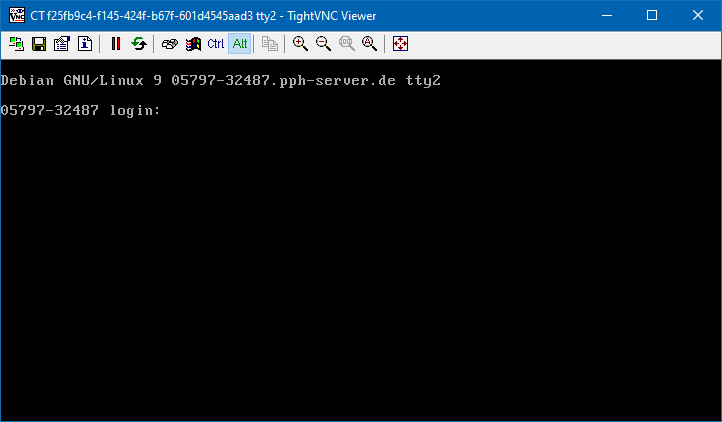
- Open a VNC program, such as TightVNC Viewer.
- Enter the VNC address in the Remote Host field.
- Example: 1.2.3.4::5960
- Click Connect.
- Enter the password that is displayed in the web interface VNC dialog. Confirm with Enter.
- Now you are connected to your server via VNC console.
Please note that we change the address of your VNC server from time to time. This has security reasons. So check in the webinterface if you still have the current address.
The connection is refused
- Stop the server completely in the web interface and start it again. A reboot from inside the operating system is not enough. Then test again.
- If that does not help: disable VNC in the ?VNC? tab, stop the server, wait a moment and start it.
- Enable VNC again and trigger ?Restart? for VNC there. Check whether the address or password has changed.
If VNC stops working again after a day or two, the VNC server was most likely switched off for security reasons, see VNC is emergency access. This is intended and not a bug. Set up permanent access via SSH or RDP instead.
 DE:
Wie kann ich mich per VNC verbinden?
DE:
Wie kann ich mich per VNC verbinden?
 EN:
How do I connect via VNC?
EN:
How do I connect via VNC?